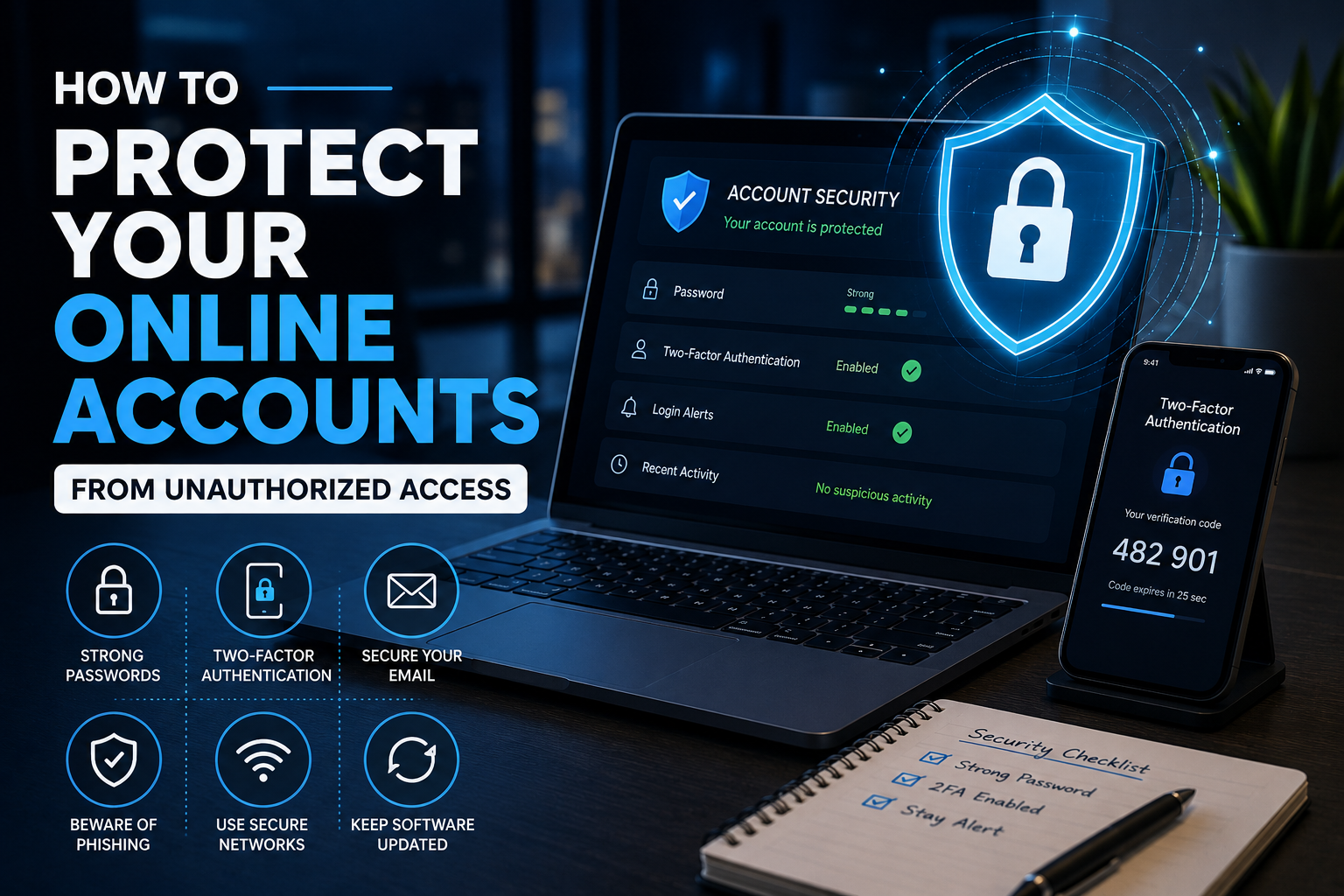
Practical steps you can take to strengthen your email, banking, shopping, social media, and other important online accounts.
Online accounts have become a central part of everyday life. Your email account may hold years of conversations and documents. Your shopping accounts can contain saved addresses and payment information. Social media accounts may include photographs and personal conversations, while financial accounts can provide access to information that should remain private.
Because so much personal information is connected to online accounts, protecting them is more important than simply remembering a password. Unauthorized access can happen when someone obtains a reused password, tricks you into revealing a verification code, gains access to an old account, or takes advantage of an account that has weak security settings.
The good news is that account protection does not have to be complicated. A handful of practical habits can significantly improve your overall security. Using unique passwords, enabling multi-factor authentication, reviewing account activity, protecting your email account, and being careful with unexpected messages are all useful steps for everyday users.
Use different passwords for important accounts.
Turn on multi-factor authentication whenever available.
Watch for unfamiliar activity and connected devices.
1. Start With Your Most Important Accounts
You do not need to change every account password in one afternoon. A better approach is to start with accounts that could provide access to other services or contain sensitive information.
Your primary email account should usually be near the top of the list. Email is often used to reset passwords, confirm new devices, and receive security notifications. If someone gains control of your email, they may be able to attempt password resets for other accounts.
After email, focus on financial accounts, cloud storage, social media, shopping accounts, and any service containing sensitive personal information.
Email → Financial accounts → Cloud storage → Social media → Shopping and other important services.
2. Stop Reusing the Same Password
Password reuse is one of the easiest ways for a problem with one account to become a problem across several accounts.
Imagine using the same password for a shopping website, an old forum, your social media account, and your email. If the password from the less important website is exposed, someone may try the same credentials on more valuable services.
Using unique passwords limits this type of risk. Even if one password is compromised, your other accounts have a separate password.
Strong passwords do not have to be difficult for you to manage. A reputable password manager can generate and store unique passwords so you do not have to remember every combination yourself.
3. Create Long, Hard-to-Guess Passwords
A password based on a name, birthday, pet, favorite sports team, or simple word can be easier to guess than a longer and more random password.
Avoid predictable combinations such as your name followed by a few numbers. Instead, use long and unique passwords or passphrases supported by your password manager.
Do not include information that is easily connected to you. Someone who can view your social media profile may already know your favorite team, city, pet, school, or birthday.
For important accounts, consider changing weak or reused passwords even if you have never experienced a security problem.
4. Turn On Multi-Factor Authentication
Multi-factor authentication, often called MFA or two-factor authentication, provides an additional verification step when you sign in.
Instead of relying only on a password, the service may require another factor, such as an authenticator app, security key, or verification code.
The Federal Trade Commission recommends using multi-factor authentication on accounts that support it, especially important accounts such as email, financial services, and social media. ([consumer.ftc.gov](https://consumer.ftc.gov/articles/how-protect-your-personal-information-online?utm_source=chatgpt.com))
Protect Your Email First
Your email account can be connected to password resets and security notifications for other services. Adding an extra sign-in verification method can make it harder for an unauthorized person to take control.
5. Never Share Your Verification Codes
Verification codes are intended for you. If a person contacts you and asks you to read a code that just arrived by text message, email, or authenticator app, stop before giving it to them.
A scammer may already know your username or password and simply need the verification code to complete the login. The request may come through a phone call, text message, email, or social media message.
Even if the person claims to be from technical support, a bank, a delivery company, or another familiar organization, verify the situation through an official contact method before sharing anything.
6. Protect Your Email Account Like a Master Key
Your email address may appear on dozens of websites, but the account itself deserves special protection.
Email accounts are commonly used for password resets, account confirmations, purchase receipts, travel bookings, and important communications. If someone gets access, they may be able to search your inbox for account information and reset links.
Use a unique password for your email account and enable multi-factor authentication. Review recovery email addresses and phone numbers to make sure they belong to you.
Also check whether unfamiliar forwarding rules have been created. An attacker who gains access to an email account may attempt to forward messages to another address.
7. Review Recent Account Activity
Many major online services provide a security dashboard showing recent sign-ins, connected devices, or account sessions.
Take a look at these records occasionally. If you see a device, location, browser, or session you do not recognize, investigate it rather than ignoring it.
Keep in mind that location information shown by online services is not always perfectly precise. Mobile networks, VPNs, and other factors can affect the location displayed. However, an unfamiliar device combined with other suspicious activity deserves attention.
Remove devices you no longer own or recognize.
Look for unusual active sessions or sign-ins.
Pay attention to unexpected security notifications.
8. Remove Old Devices From Your Accounts
Over time, people replace phones, computers, tablets, and other devices. The old device may remain connected to an online account even after you stop using it.
Review the devices listed in your account security settings. Remove devices you have sold, donated, lost, or no longer recognize.
If you give away a device, factory-reset it according to the manufacturer’s instructions and make sure your accounts have been removed before handing it to someone else.
9. Be Careful With Password Reset Messages
Password reset emails can be legitimate, but an unexpected password reset message can also be a warning that someone is attempting to access your account.
If you receive a reset message you did not request, do not automatically click the link. Instead, open the service’s official website or app directly and check your account security settings.
If you discover that someone attempted to access the account, change your password and review recent account activity.
10. Watch Out for Phishing Attacks
Phishing is a common method used to trick people into revealing passwords, payment details, verification codes, or other sensitive information.
The message may appear to come from a bank, online retailer, government agency, employer, delivery company, or social media platform.
Look for unexpected requests, urgent language, unusual sender addresses, suspicious links, and requests for sensitive information. But remember that modern phishing messages can look polished and professional.
The Best Response to an Unexpected Login Message
Do not use the link in the message.
Open the official website or app yourself.
Check your account security notifications.
Change your password if you find suspicious activity.
11. Be Careful When Signing In on Shared Computers
Public or shared computers can be useful in libraries, hotels, schools, workplaces, and other locations. However, they are not the same as using your personal computer.
Avoid saving passwords or payment information on a shared computer. When you finish using an account, sign out completely and close the browser window.
For highly sensitive accounts, such as banking or financial services, consider using your own trusted device whenever possible.
12. Keep Recovery Information Current
Account recovery options can help you regain access if you forget a password or lose access to a device.
However, recovery information that belongs to someone else or an old phone number may create problems. Review the recovery email addresses, phone numbers, backup codes, and other recovery methods associated with your important accounts.
Make sure these methods are current and protected. If you receive backup codes, store them somewhere secure rather than leaving them in an easily accessible location.
13. Review Connected Apps and Services
Many websites allow you to sign in using another account. This can be convenient, but it may also create connections between services.
Review the third-party applications connected to your important accounts. If you no longer use a service, consider removing its access.
Do not approve an unfamiliar application simply because it asks for permission. Read what information the application wants to access before connecting it to your account.
14. Protect Your Financial Accounts
Financial accounts deserve extra attention because unauthorized access can have direct financial consequences.
Use unique passwords and multi-factor authentication when available. Turn on account alerts so you can receive notifications about transactions or other important account changes.
Review statements regularly and report transactions you do not recognize to the financial institution through an official contact method.
Never provide banking passwords or verification codes to someone who contacts you unexpectedly.
15. Keep Your Devices Updated
Account security also depends on the devices you use to access those accounts.
Keep your phone, tablet, computer, browser, and important applications updated. Software updates can include security fixes that address known vulnerabilities.
Use the built-in update system provided by the manufacturer or official app marketplace. Avoid clicking random pop-ups claiming that your device has an urgent security problem and needs an unfamiliar program.
16. Use a Screen Lock on Your Devices
Protecting your online accounts also means protecting the physical devices used to access them.
Use a strong passcode, password, PIN, fingerprint, or facial recognition feature supported by your device. Set the device to lock automatically after a reasonable period of inactivity.
If your phone or laptop is lost, a screen lock can make it more difficult for another person to immediately access your accounts and personal information.
17. Be Cautious With Browser Password Saving
Saving passwords in a browser can be convenient, especially when you have many accounts. If you use this feature, make sure the browser account and the device itself are well protected.
Review saved passwords periodically and remove old credentials you no longer need.
For people managing many important accounts, a reputable dedicated password manager may offer useful features for generating, storing, and organizing unique passwords.
18. Do Not Ignore Security Alerts
Security alerts can sometimes feel like routine notifications, but they deserve attention when they involve your account.
If you receive a message about a new sign-in, password change, recovery method, or other account modification that you did not make, investigate it.
Use the official website or app to check the account rather than clicking links in unexpected messages. If the activity is unauthorized, change the password and secure the account immediately.
19. Make a Plan for Lost or Stolen Devices
A lost phone or laptop can become more than an inconvenience if it remains signed in to important accounts.
Learn how your device’s remote-location, lock, and erase features work before you need them. Keep a record of important account recovery information in a secure place.
Review which accounts are signed in on your devices and make sure you know how to remotely sign out or remove a device if necessary.
1. Try the device’s official location or lock feature.
2. Contact your mobile carrier when appropriate.
3. Review important account sessions.
4. Sign out or remove the missing device.
5. Change important passwords if you believe the device or accounts may be exposed.
20. Create a Monthly Account Security Routine
You do not have to spend hours checking your accounts every week. A short monthly review can help you catch problems before they become more serious.
Look through recent sign-ins, connected devices, security alerts, recovery information, and third-party applications. Check whether your important accounts still use strong and unique passwords.
This routine is especially useful after changing phones, moving to a new computer, creating new accounts, or installing several new applications.
Review account activity, devices, and security alerts.
Review old accounts, connected apps, and recovery details.
Act immediately when you notice suspicious account activity.
What to Do If You Think Someone Accessed Your Account
If you suspect unauthorized access, do not panic. Start by securing the account through the official website or app.
Change the password to a new, unique one and sign out of unfamiliar sessions or devices. Review recent activity and check whether the recovery email, phone number, or other account information has been changed.
Enable multi-factor authentication if it was not already active. If the same password was used elsewhere, change it on those accounts too.
If financial information may have been exposed, contact your bank or card provider through a trusted method and monitor your accounts for suspicious transactions.
Frequently Asked Questions
Strong Account Security Starts With Simple Habits
Protecting your online accounts does not require complicated technical knowledge. Start by giving your most important accounts unique passwords, enabling multi-factor authentication, and keeping recovery information current.
Then build a habit of checking recent sign-ins, removing old devices, reviewing connected apps, and treating unexpected messages with caution. The goal is not to make online life difficult. It is to make unauthorized access harder while keeping your accounts convenient for you to use.