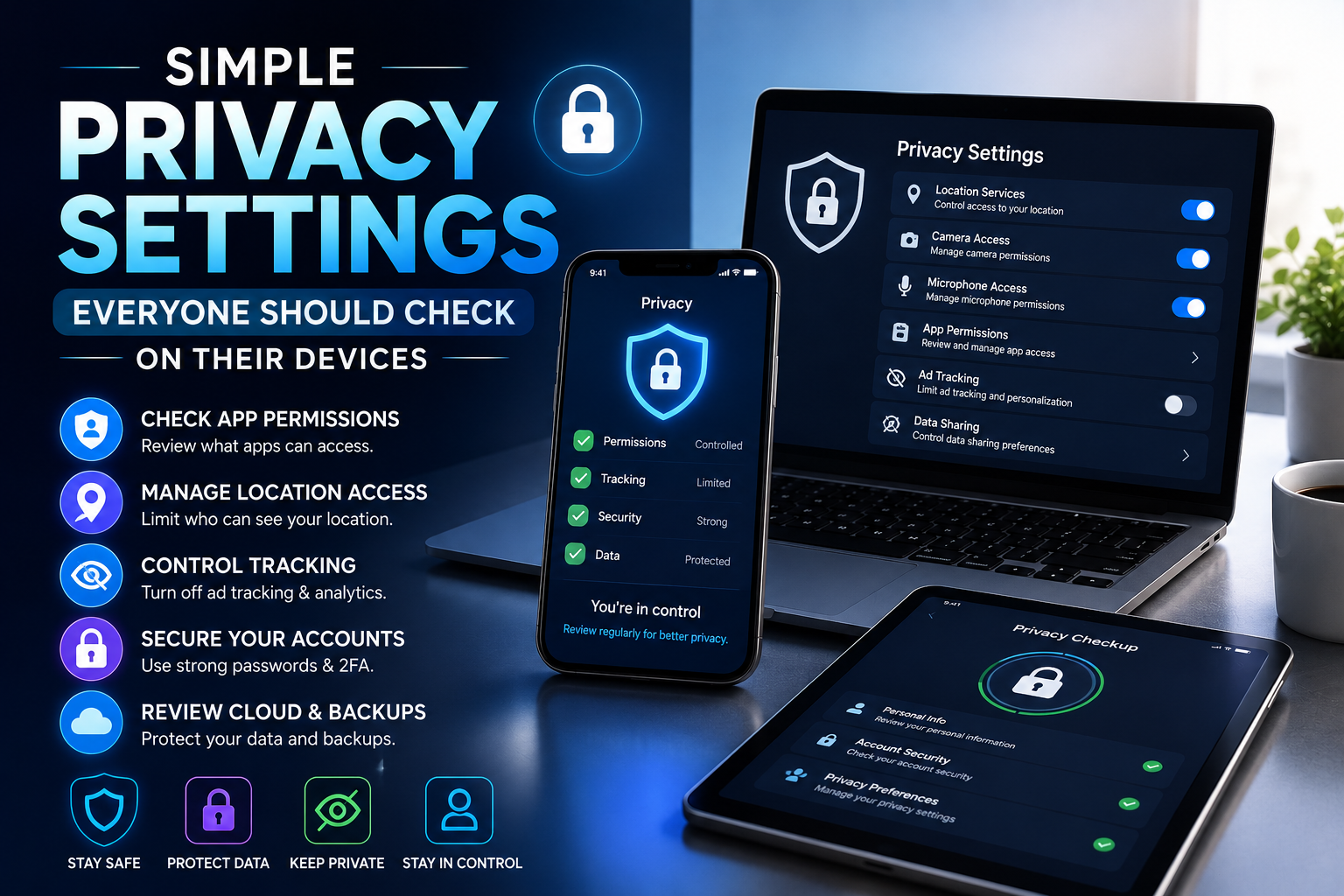
Simple Privacy Settings Everyone Should Check on Their Devices
A few minutes spent reviewing your phone, computer, browser, and account privacy settings can give you more control over what information is shared and who can access it.
Most people use several connected devices every day. A smartphone may contain photos, messages, contacts, location information, banking apps, saved passwords, and years of personal conversations. A laptop or desktop can contain documents, work files, browser history, downloaded files, and account information. Even a smart TV, tablet, smartwatch, or connected home device can collect information about how it is used.
That does not mean you need to become a technology expert or turn off every convenient feature. Privacy is usually about making informed choices. Many devices and apps give you settings that let you decide which information can be accessed, when it can be accessed, and which apps or services are allowed to use it.
The exact names and locations of privacy controls vary between Apple, Android, Windows, macOS, browsers, and individual apps. However, the important categories are surprisingly similar. Reviewing a few key settings can help reduce unnecessary data sharing while allowing you to keep the features you actually use.
Review which apps can access sensitive information.
Control which services can use your location.
Strengthen account privacy and security controls.
1. Review Which Apps Have Access to Your Information
One of the easiest privacy checks is also one of the most useful: look at the permissions you have given to apps.
Apps may request access to your camera, microphone, contacts, photos, location, calendar, files, or other device features. Some permissions are necessary for an app to work properly. A navigation app, for example, may need location access. A video-calling app may need camera and microphone access.
But not every app needs every permission. An app that you rarely use may still have access that you granted months or years ago.
Open your device’s privacy or permission settings and review the apps listed under sensitive categories. If an app does not need a permission anymore, consider removing it. You can usually grant access again later if the feature requires it.
If you cannot think of a good reason an app needs access to something, review that permission before leaving it enabled.
2. Check Location Sharing
Location information can be useful for maps, weather, transportation, restaurant recommendations, emergency features, and other services. However, you may not want every application knowing where you are throughout the day.
Check which apps have location access and look at the available choices. Depending on your device, you may be able to choose options such as never, ask next time, while using the app, or always.
For many apps, allowing location access only while the app is being used may provide a reasonable balance between convenience and privacy.
Also review location-sharing features connected to family or social accounts. Make sure you understand who can see your location and whether you still want that sharing enabled.
3. Review Camera and Microphone Permissions
Your camera and microphone can reveal highly personal information, so these permissions deserve special attention.
Video conferencing, messaging, social media, and photography apps may legitimately need camera or microphone access. Other apps may not need continuous access.
Review the permission list and remove access from apps that do not need it. If your device provides indicators showing when the camera or microphone is active, learn what those indicators look like.
Keeping your operating system updated is also important because manufacturers regularly release fixes for security and privacy problems.
4. Take a Look at Your Photos and File Access
Photos can contain much more information than the image itself. Your photo library may include pictures of identification documents, receipts, family members, home addresses, travel details, or other personal material.
Review which apps can access your photos and files. Some devices allow you to give an app access to selected photos instead of your entire library. If that option is available and works for your situation, it can provide more control.
Do not automatically approve full access simply because an app asks for it. Consider whether the application really needs your entire photo library to perform the function you want.
Your Photo Library Is Worth Reviewing
Remove unnecessary app access and consider deleting old screenshots, documents, and sensitive images you no longer need.
5. Check Your Browser Privacy Settings
Your web browser is one of the most important privacy tools on your computer or phone. It can store browsing history, cookies, saved passwords, site permissions, autofill information, and other data.
Open the privacy and security section of your browser and review the available settings. Look at cookie controls, pop-ups, site permissions, location access, camera and microphone permissions, and stored browsing information.
You should also check which websites have been given special permissions. A site that you trusted months ago may no longer need access to your location, notifications, camera, or microphone.
Browser privacy does not mean that you need to block every cookie or disable every feature. Instead, choose settings that fit your comfort level and understand what changes when you enable or disable them.
6. Review Your Social Media Privacy
Social media accounts can reveal a surprising amount of information if privacy settings are left at their default configuration.
Review who can see your posts, who can contact you, who can tag or mention you, and whether your profile information is publicly visible.
Also look at old posts. Something you shared several years ago may contain information you would not normally publish today.
Check connected applications and websites as well. You may have previously used your social account to sign in to a service and forgotten about it. Remove connections you no longer recognize or use.
7. Turn On Two-Factor Authentication
Two-factor authentication is primarily a security feature, but it is an important part of protecting personal information because it adds another layer between your accounts and unauthorized access.
When available, enable two-factor authentication for important accounts such as email, banking, financial services, cloud storage, and social media.
Depending on the service, you may be able to use an authenticator app, security key, or another verification method. Follow the service’s instructions and keep recovery information somewhere secure.
Protect it because it can be used to reset other accounts.
Use the strongest available security options.
Protect personal documents and photographs.
8. Review Saved Passwords and Account Sign-Ins
Many people have accumulated dozens of online accounts over the years. Some may be old, forgotten, or connected to services they no longer use.
Review the saved passwords or password manager associated with your device and identify accounts you no longer need. Closing old accounts can reduce the amount of personal information stored across services.
For accounts you continue using, make sure passwords are strong and unique. Reusing the same password across multiple websites can create problems if one service experiences a breach.
A reputable password manager can make it easier to use different passwords without having to memorize every one.
9. Check Lock Screen Privacy
Your lock screen can display information even when your phone is locked. Depending on your settings, notifications may reveal message previews, email subjects, appointment details, or other information.
Review what appears while the device is locked. You may be able to hide sensitive notification content until the phone is unlocked.
This can be especially useful if you regularly leave your phone on a desk, counter, or other place where someone nearby might see the screen.
10. Review Contact and Calendar Access
Contacts and calendars can contain more information than many people realize. Your contacts may include names, phone numbers, email addresses, family members, coworkers, and business relationships.
Your calendar may reveal appointments, travel plans, meetings, birthdays, or other details about your routine.
Only allow apps to access these areas when there is a clear reason. If you previously granted access to an app you no longer use, remove the permission.
11. Check Advertising and Tracking Preferences
Many platforms provide settings related to personalized advertising, tracking, or the use of activity information for advertising purposes.
These controls vary considerably between operating systems, browsers, apps, and online services. Look through the privacy section of the services you use most frequently and review the available choices.
Remember that changing an advertising preference does not necessarily mean you will stop seeing advertisements. It may instead affect how advertisements are personalized or how certain information is used.
12. Check Your Smart Home Devices
Privacy is not limited to phones and computers. Smart speakers, security cameras, televisions, doorbells, watches, and other connected devices can collect information or provide access to microphones, cameras, location information, or household activity.
Review the privacy and security settings for devices connected to your home network. Change default passwords when applicable, install available firmware updates, and remove devices you no longer use.
For smart cameras and microphones, pay particular attention to who has account access and whether recordings are stored in the cloud.
A Quick Smart-Home Check
✓ Change weak or default passwords.
✓ Install available device updates.
✓ Review who can access the device.
✓ Check microphone and camera settings.
✓ Remove devices you no longer use.
13. Review Cloud Storage and Backup Settings
Cloud storage can be incredibly convenient, but it can also contain some of your most personal information. Photos, tax documents, scanned IDs, work files, family documents, and other sensitive material may be stored online.
Review which devices are connected to your cloud account and which applications have access. Remove old devices you no longer own or use.
Make sure your cloud account has a strong password and additional account protection enabled where available.
14. Turn Off Unnecessary Notifications
Notifications are convenient, but excessive notifications can expose information and make your devices feel unnecessarily intrusive.
Review which apps are allowed to send notifications. Disable notifications from apps that do not provide useful information.
You can also adjust how notifications appear on your lock screen. Keeping the notification but hiding sensitive details can provide a useful balance between convenience and privacy.
15. Keep Your Devices and Apps Updated
Privacy settings cannot do everything on their own. Keeping your operating system, browser, and applications updated is another important part of maintaining a safer digital environment.
Updates may include security fixes, bug corrections, and improvements to privacy controls. Turn on automatic updates when that option makes sense for your devices and regularly restart devices when required to complete updates.
Be cautious with applications that have not been updated for a long time, especially if they handle sensitive information.
A 15-Minute Privacy Checkup You Can Do Today
You do not need to review every setting in one sitting. Start with the controls that can have the biggest effect on your personal information.
☐ Review app permissions
☐ Check location access
☐ Review camera and microphone permissions
☐ Check browser privacy settings
☐ Review social media visibility
☐ Enable two-factor authentication on important accounts
☐ Check saved passwords and old accounts
☐ Hide sensitive lock-screen notifications
☐ Review cloud account access
☐ Update your device and apps
☐ Review smart-home device access
Privacy Does Not Mean Giving Up Convenience
It is easy to think that better privacy requires turning off every feature, refusing every permission, and avoiding connected technology altogether. That is not necessary for most people.
A better approach is to understand why an app or service wants access and decide whether the benefit is worth the information being shared.
For example, a maps application may need location information to provide directions. A video-call application may need the camera and microphone during a call. A photo-editing app may need access to pictures you specifically choose to edit.
The goal is not to eliminate all data sharing. The goal is to avoid unnecessary access and make choices intentionally.
A Few Minutes Can Give You More Control
Your devices are designed to make modern life easier, but convenience should not mean giving every app unlimited access to your personal information. Taking a few minutes to review privacy settings can help you understand what your devices and apps can access.
Start with your phone, then check your computer, browser, social accounts, cloud storage, and connected devices. Review permissions regularly, especially after installing new apps or changing the way you use an account. You do not need to change everything at once. A few thoughtful adjustments can give you greater control while allowing you to keep the technology and features that make everyday life easier.